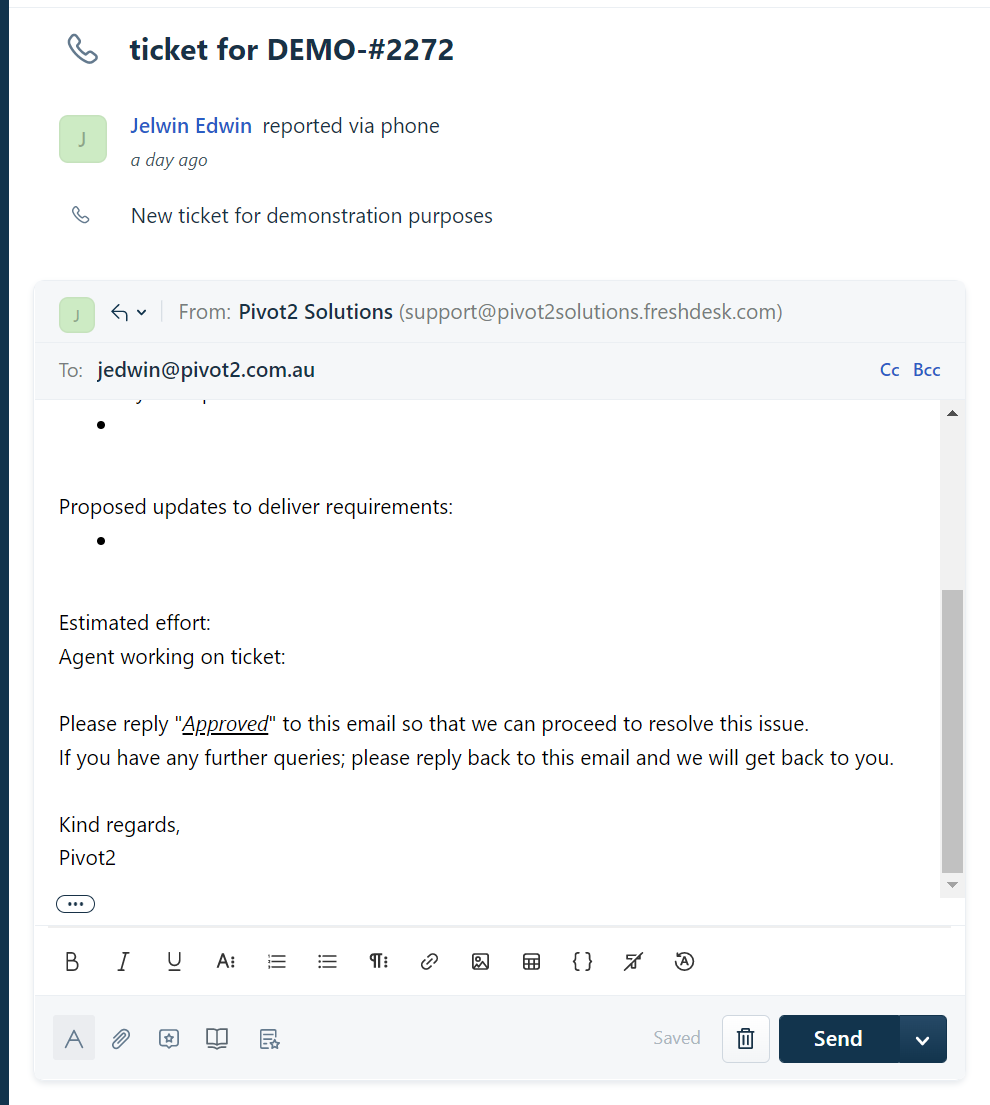
The following document demonstrates how to insert canned responses into notes and replies within a Freshdesk ticket.
Inserting canned responses allow for capturing information of the ticket within a note as well as the ability to communicate and receive approval from a client to proceed with applying proposed changes.
Inserting Canned Responses for Notes
Navigate to the ticket within Freshdesk.
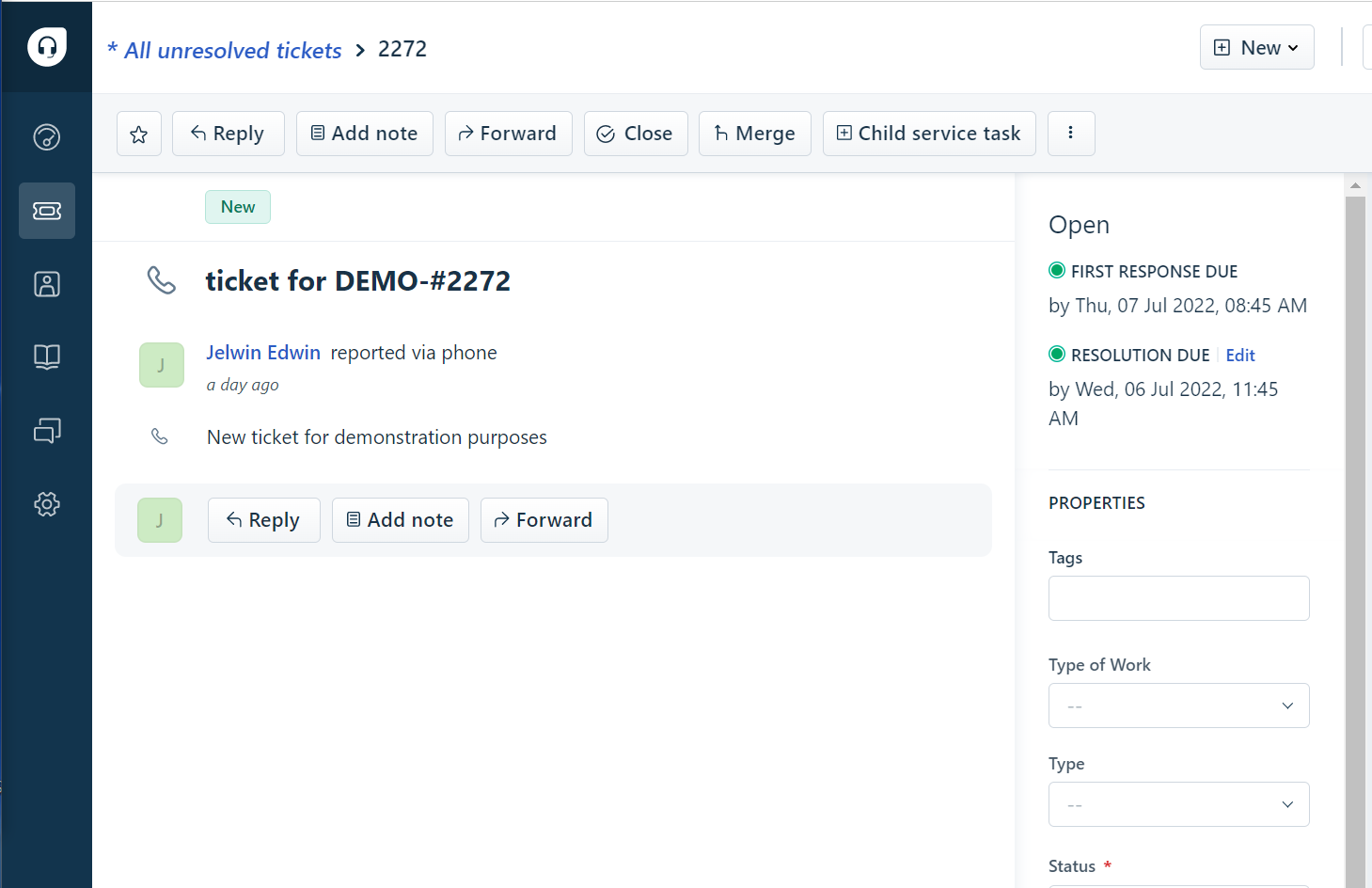
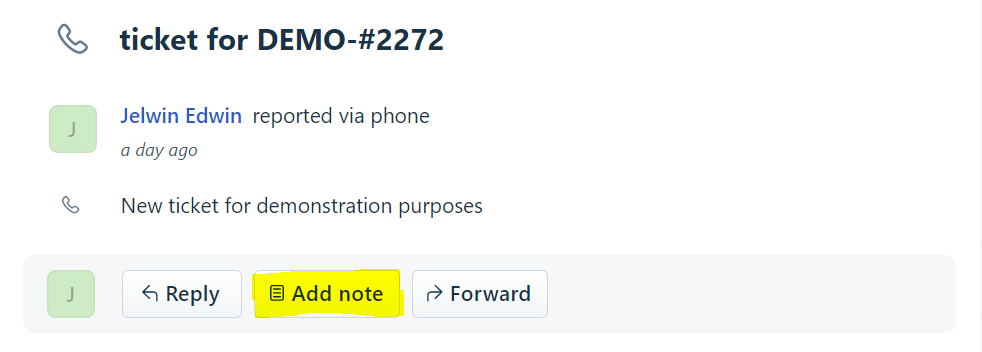
Click on the Add Note button
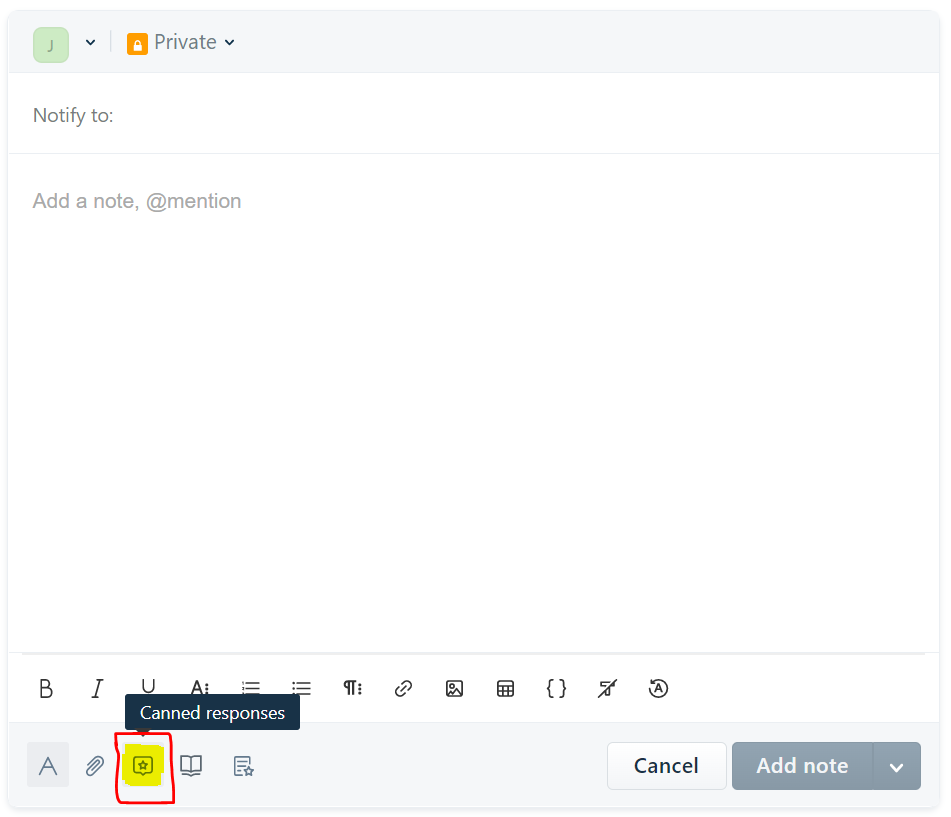
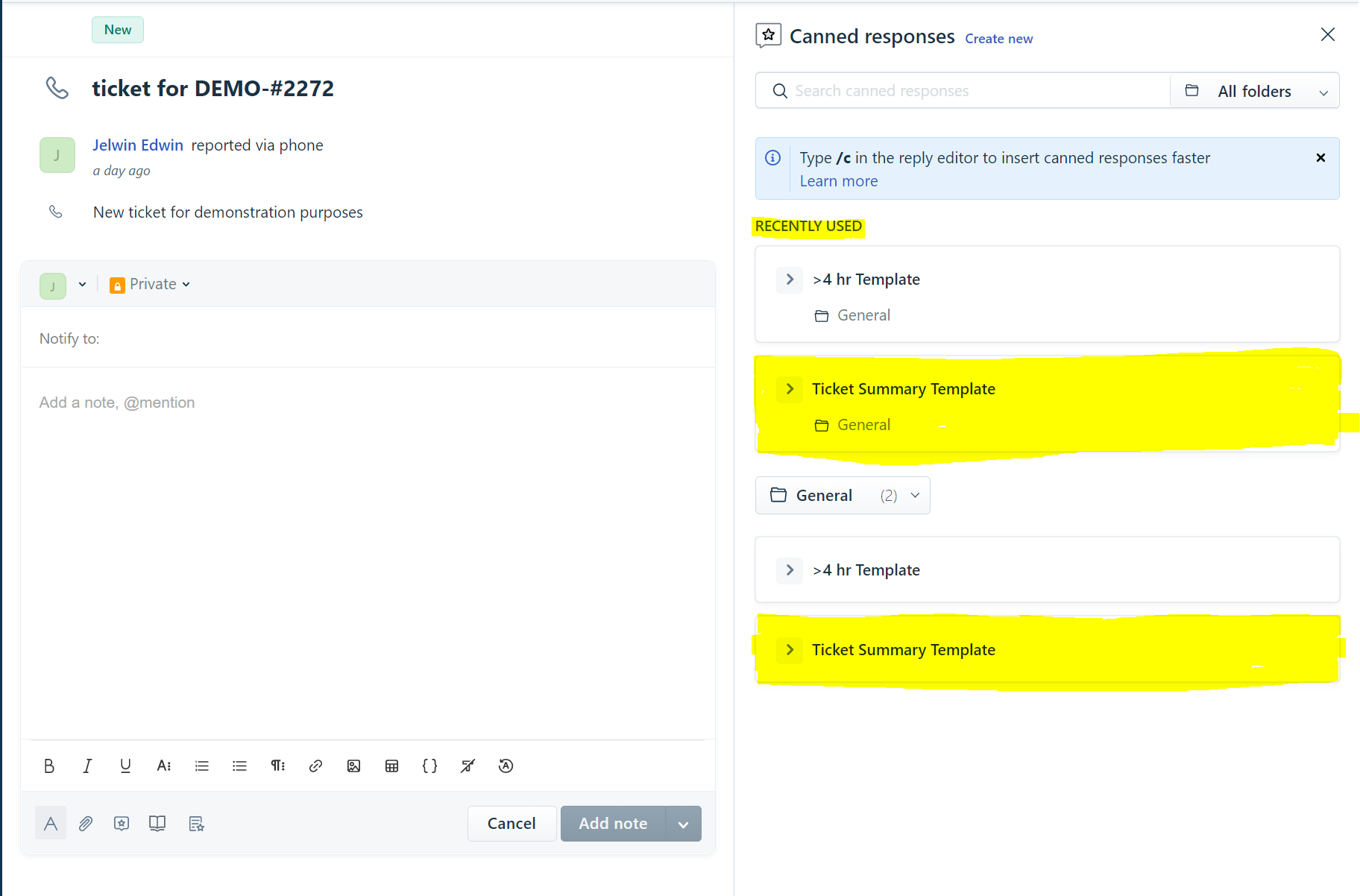
Click on the Canned Responses button located at the bottom
Hover over which response you would like to use. Freshdesk automatically shows your most recent ones as well.
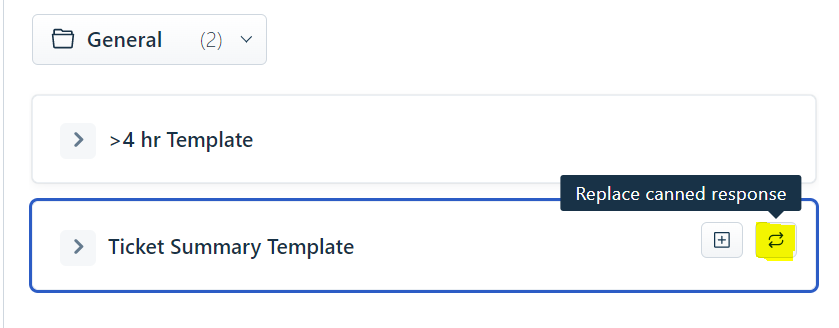
Select the replace button to remove and replace all contents of your current note with the canned response.
Selecting the insert button will add the canned response below the existing content.
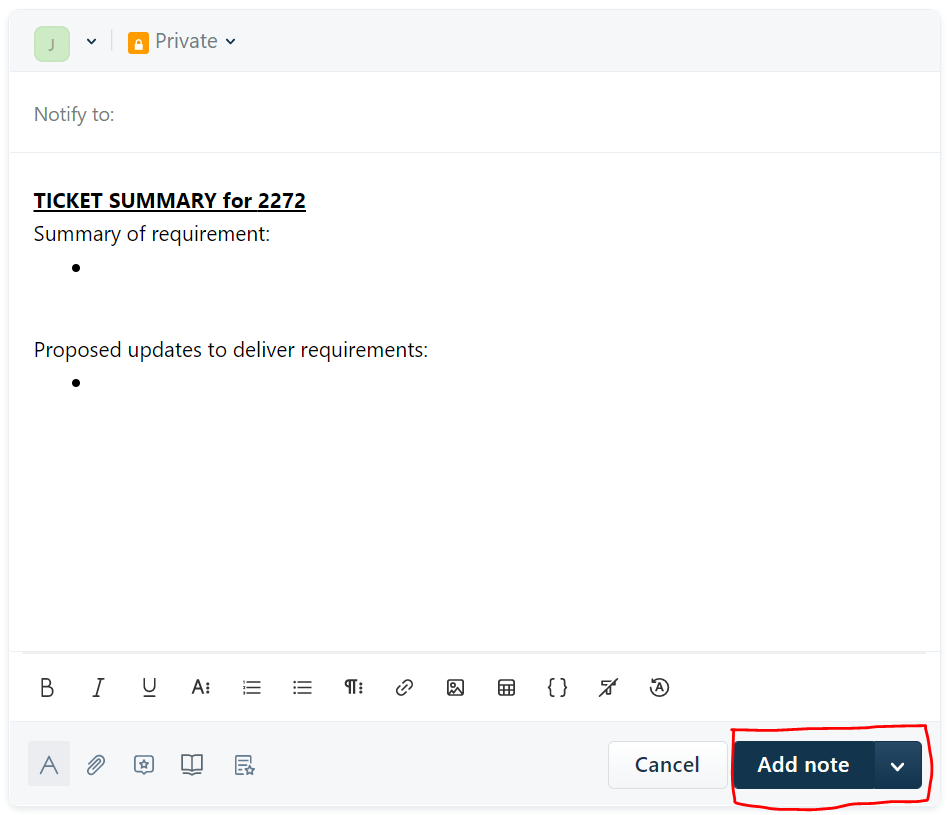
Your note now should be pre-filled with the canned response. Provide the necessary updates and click on the add note button to submit the note into the ticket.
Inserting Canned Responses for Replies
Navigate to the ticket within Freshdesk.
Click on the reply button
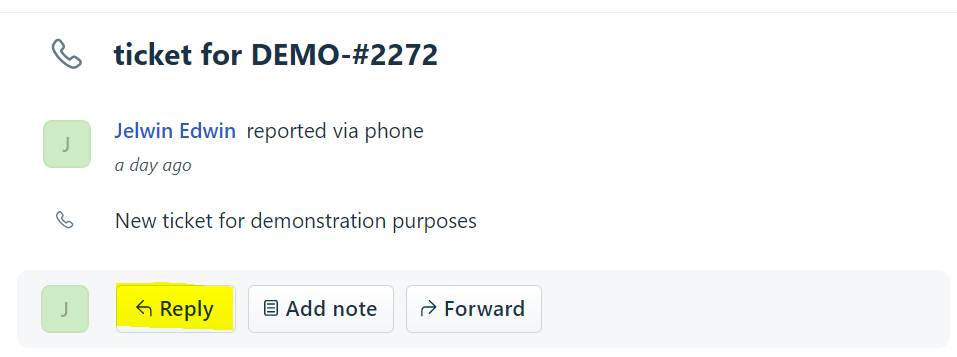
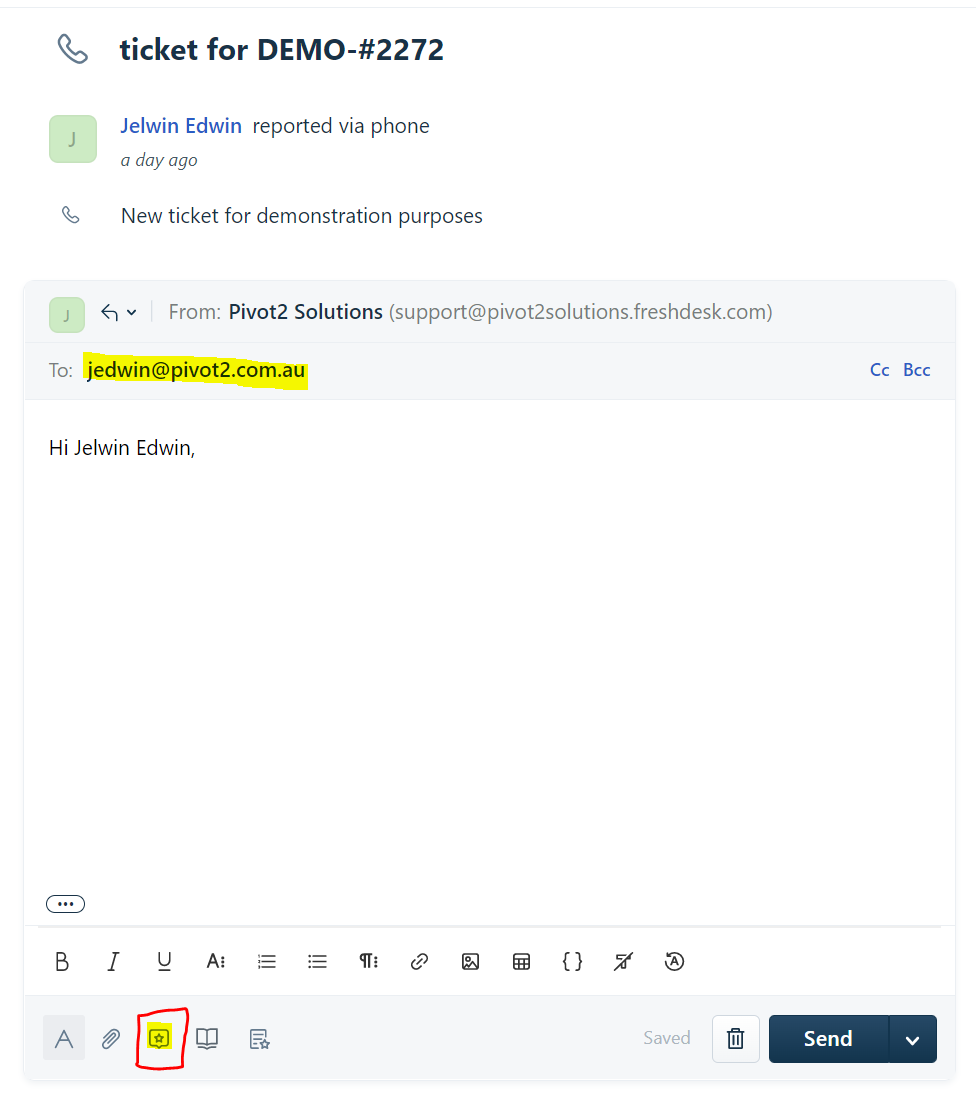
Ensure the ticket details (such as reply address) is correct and select the canned responses button.
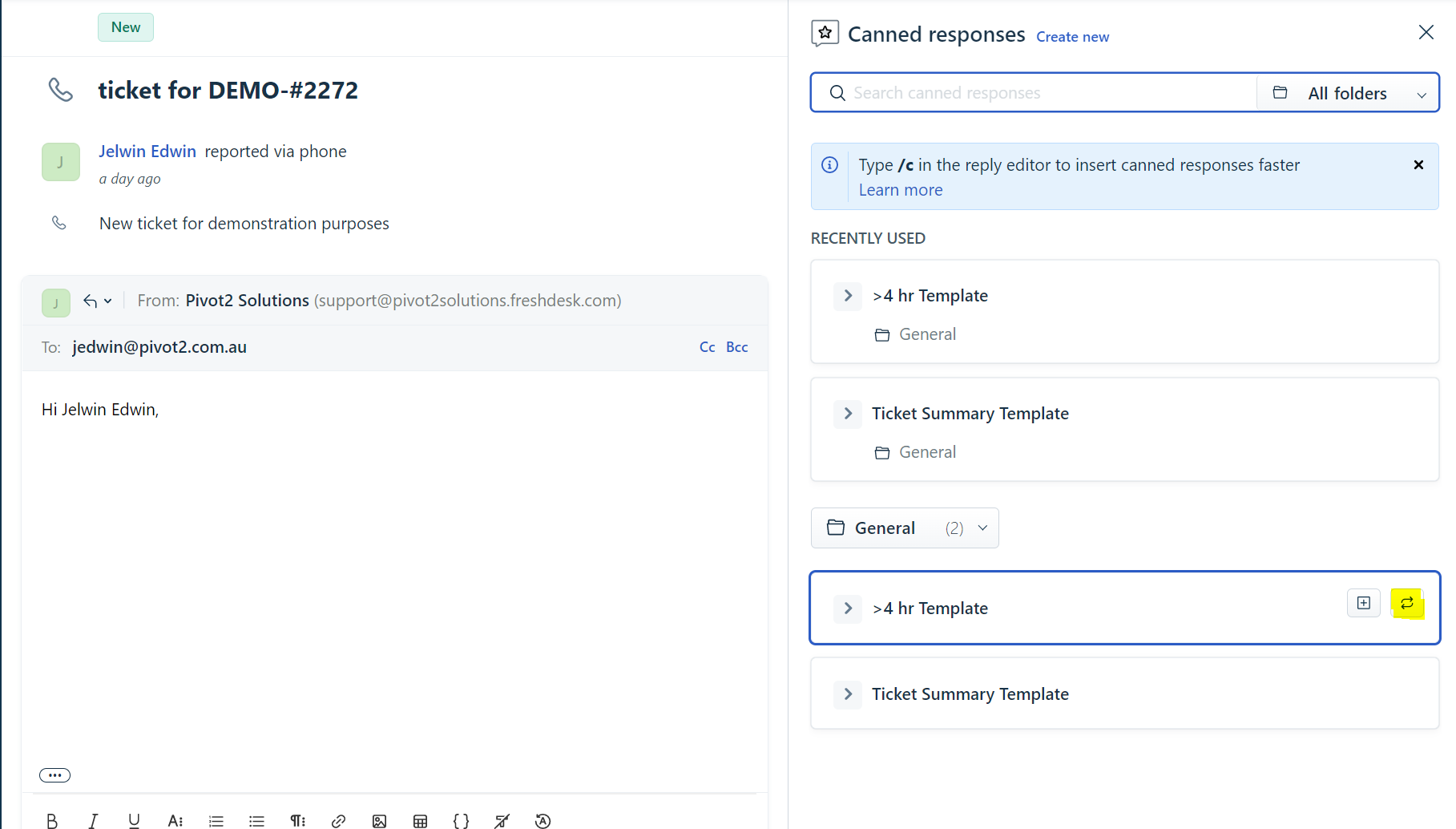
Hover over the correct template and select the replace button to remove and replace all contents of your current note with the canned response.
Selecting the insert button will add the canned response below the existing content.
Your reply now should be pre-filled with the canned response. Provide the necessary updates and click on the send button to reply to the client.